Is It Safe to Allow Full Access for a Keyboard App on iPhone?
That “Allow Full Access” warning is enough to make anyone hesitate. Here’s what the permission actually opens up and how to tell if a keyboard app deserves it, from someone who built one.
When you add a keyboard app, an Allow Full Access switch shows up in Settings. Turn it on and iOS warns you that the keyboard could send anything you type. Reading that for the first time is pretty unsettling.
What the switch actually does
iOS runs keyboard apps in a tightly closed box. Without Full Access, a keyboard can’t go online and can’t share data with its own app. Turning it on removes those limits, and that’s why Apple shows the warning. It means a door is now open. It doesn’t mean anything is going through it.
Whether a keyboard actually sends your typing anywhere comes down to how that particular app was built.
Why keyboard apps ask for it
Theme apps mostly need it to bring the design or photo you made in the app over to the keyboard. It’s also needed for vibration and for features that save text you copied. None of that requires the internet.
The things to watch are features that only work with a server, like spell checking, translation or search inside the keyboard. Those need your text to leave the phone. So the first thing to find out is whether your keyboard app has anything like that.
How to check an app
Scroll down on the app’s App Store page to App Privacy. It lists what the app collects. If you see typing data or search history there, think twice. It’s also worth opening the privacy policy and looking for a line saying keystrokes aren’t collected.
If the keyboard shows ads inside itself, it’s connected to the internet. And if a keyboard wants you to log in, I’d be a bit suspicious. There’s rarely a good reason for a keyboard to need an account.
What I did with Keypop
Keypop started as a keyboard for my daughter (here’s that story), so I decided from the start that it would never touch what you type. The keyboard doesn’t store your typing and doesn’t send it anywhere. There are no ads and no network code inside the keyboard. The ads you see are only in the Keypop app itself. There’s no login either.
Keypop uses Full Access only to load the keyboard you designed and to vibrate.
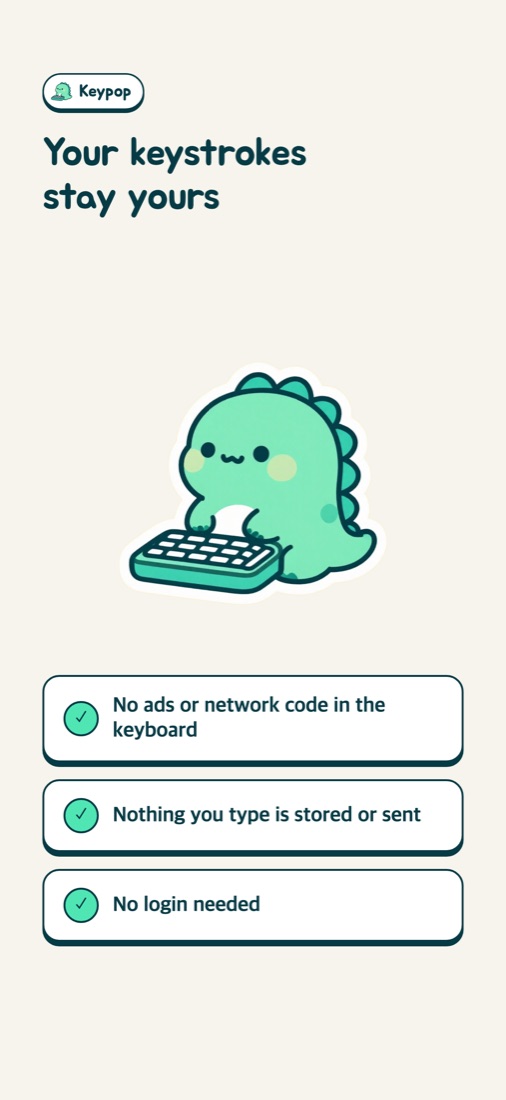
The details are in the Keypop privacy policy.

Keypop
A keycap keyboard that never stores or sends your typing
What happens if I leave it off?
Typing still works fine. With Keypop, though, your design and vibration might not show up in the keyboard. You can change your mind any time in Settings, Keypop, Keyboards.
In banking apps and password fields your iPhone switches to the system keyboard automatically, whatever keyboard app you use. The most sensitive stuff never reaches a third party keyboard in the first place.
Setting it up for the first time? Follow the iPhone setup guide.
Keypop
Free · no login needed
More posts
My Daughter Wanted a Keycap Keyboard App, So I Built One (The Keypop Story)
How to Customize Your iPhone Keyboard with a Cute Keycap Theme (iOS Setup)
Make Your Own Keyboard from a Photo (Heart and Cloud Keycaps Included)
How to Change Your iPhone Keyboard Sound to a Mechanical Keyboard Click