Make Your Own Keyboard from a Photo (Heart and Cloud Keycaps Included)
Put a favorite photo on your keyboard, swap the keys for hearts or clouds, then pick an outline and a typing sound. Here’s how building a custom keycap keyboard works in Keypop.
Most keyboard theme apps give you a gallery to pick from. Keypop works the other way around. You choose a shape, color, outline, background and sound, and put them together yourself. If you haven’t turned the keyboard on yet, do the iPhone setup first.

Keypop
Open the app and follow along
Pick how to start
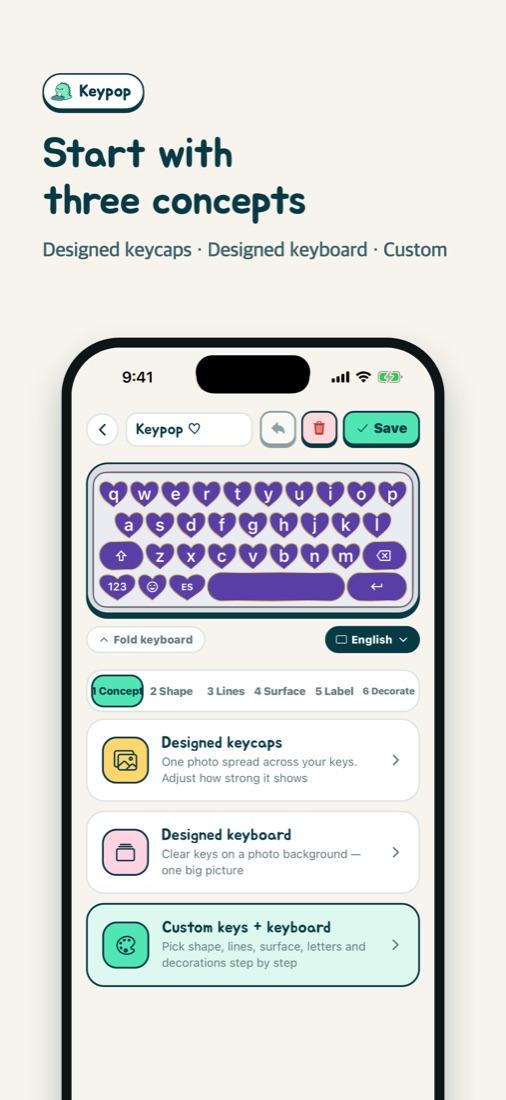
The Make tab gives you three starting points. Designed keycaps splits a photo into pieces, one per key. Designed keyboard puts a photo behind clear keys. Custom lets you pick every color and shape from scratch. You can change all of it later, so don’t overthink this part.
Add a photo
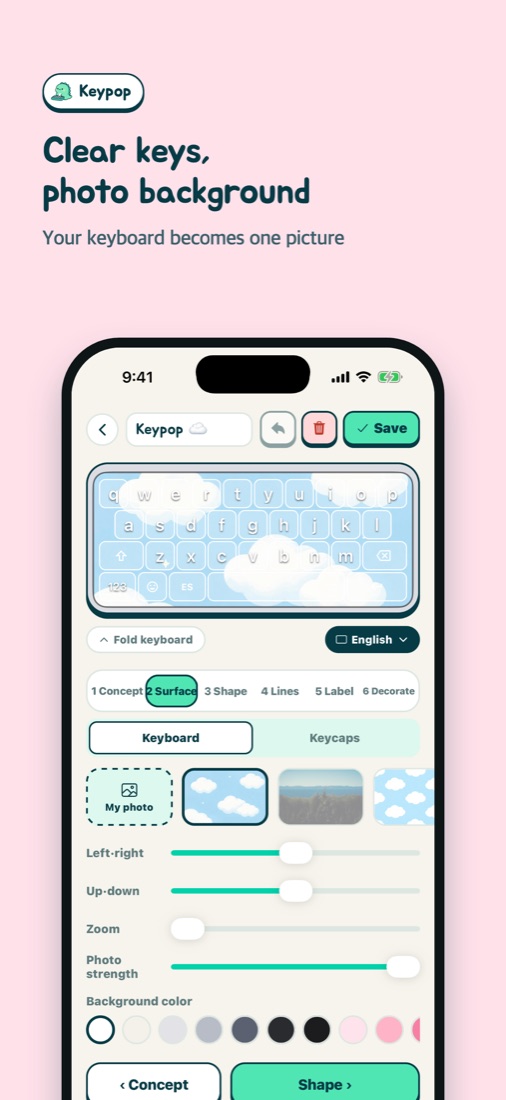
Tap My photo and choose something from your library. As you zoom, move it around or change the brightness, the preview at the top shows exactly how the keyboard will look. Pet photos, travel shots and kids’ drawings all look good here.
Choose a key shape
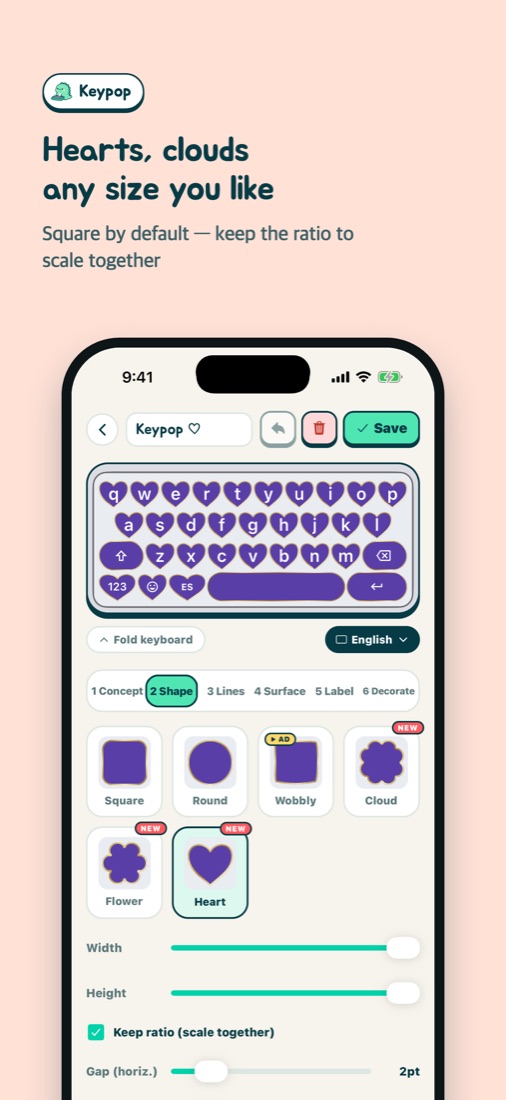
There are squares, rounded squares, circles, hearts, clouds and flowers. Width and height have their own sliders, so you can make the keys flat or tall. Tick Keep ratio if you want them to grow and shrink together.
Outlines and depth
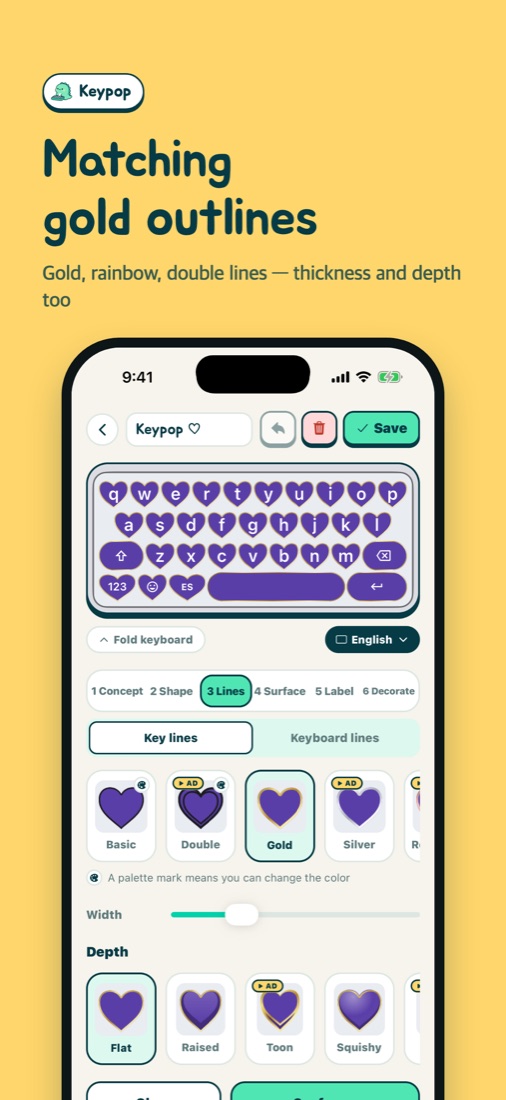
You can give the keys and the board edge the same outline: gold, rainbow, candy or a double line, in whatever thickness you like. Turn up the depth and each key gets a small shadow underneath, so it looks like a real mechanical keycap.
Keypop
Free · no login needed
Colors and background
If you started with Custom, choose the key color, letter color and board color from the palette. Matching the empty space under the keyboard makes it look much tidier. There are a few illustrated backgrounds too, like one with the Keypop dino floating on clouds.
Pick a sound and save
Last comes the sound. There are 17, from clicky and deep thocky sounds to bubble pops and an almost silent one. I described each of them in change your iPhone keyboard sound. Tap Save in the top right and your keyboard changes right away.
Materials with an ad label all unlock together if you watch one ad when you save. Keypop Plus removes ads and lets you save more keyboards.
Show it off on the Market
You can post your keyboard to the Market. When someone hearts it, it lands in their favorites and they can use it straight away. Every month the person with the most hearts wins the keycap contest. And if you don’t feel like designing, just grab one you like from the Market.
Keypop
Make yours and post it today
Keypop
Free · no login needed
More posts
My Daughter Wanted a Keycap Keyboard App, So I Built One (The Keypop Story)
How to Customize Your iPhone Keyboard with a Cute Keycap Theme (iOS Setup)
How to Change Your iPhone Keyboard Sound to a Mechanical Keyboard Click
Is It Safe to Allow Full Access for a Keyboard App on iPhone?