How to Customize Your iPhone Keyboard with a Cute Keycap Theme (iOS Setup)
iPhone doesn’t let you theme the built-in keyboard, so you add a keyboard app instead. Here’s how to install one, turn it on in Settings and switch to it with the globe key.
You won’t find a keyboard theme option anywhere in iPhone Settings. The built-in keyboard just goes light or dark with the system. If you want an aesthetic or cute keyboard, you have to install a keyboard app and add it as an extra keyboard.
I’ll use Keypop, the keycap keyboard I made, as the example. Most keyboard apps are set up the same way.
Install the app
Search “Keypop” or “keycap keyboard” on the App Store, or tap here to go straight to it. It’s free and you don’t need an account.

Keypop
Free · no login needed
Turn it on in Settings
Installing the app doesn’t add the keyboard by itself. You have to switch it on once. When you open Keypop for the first time, the Turn on keyboard button takes you right to the screen you need. To get there yourself, go to Settings, Apps, Keypop, Keyboards and turn Keypop on. Settings, General, Keyboard, Keyboards, Add New Keyboard works too.
On the same screen there’s an Allow Full Access switch. Keypop needs it to show the design you made and to vibrate. iOS shows a scary warning when you turn it on, and I explain what it really means in is Allow Full Access safe? Keypop doesn’t store or send what you type either way.
Switch with the globe key
Open any app and tap a text field. Press and hold the 🌐 globe key in the bottom left corner and pick Keypop from the list. Your iPhone remembers that choice, so it stays on Keypop in other apps too.
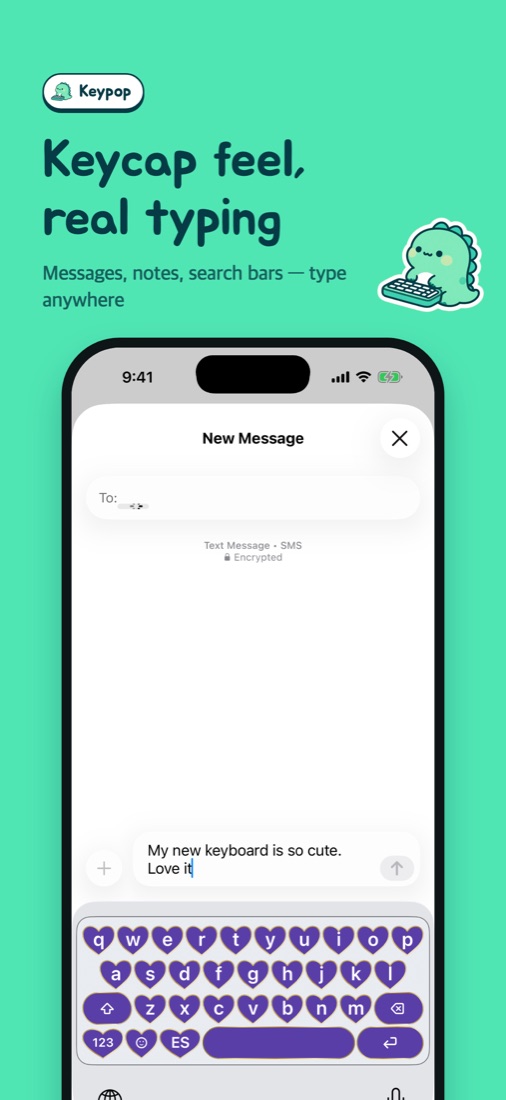
If it keeps jumping back to the default keyboard
You can remove the built-in keyboard completely. Go to Settings, General, Keyboard, Keyboards, tap Edit and delete it. Keypop lets you pick up to three typing languages, English included, so you won’t miss it. You can add it back from the same menu whenever you want.
Password and phone number fields always use the system keyboard, no matter which keyboard app you have. Apple does that on purpose, so nothing is broken.
Now the fun part
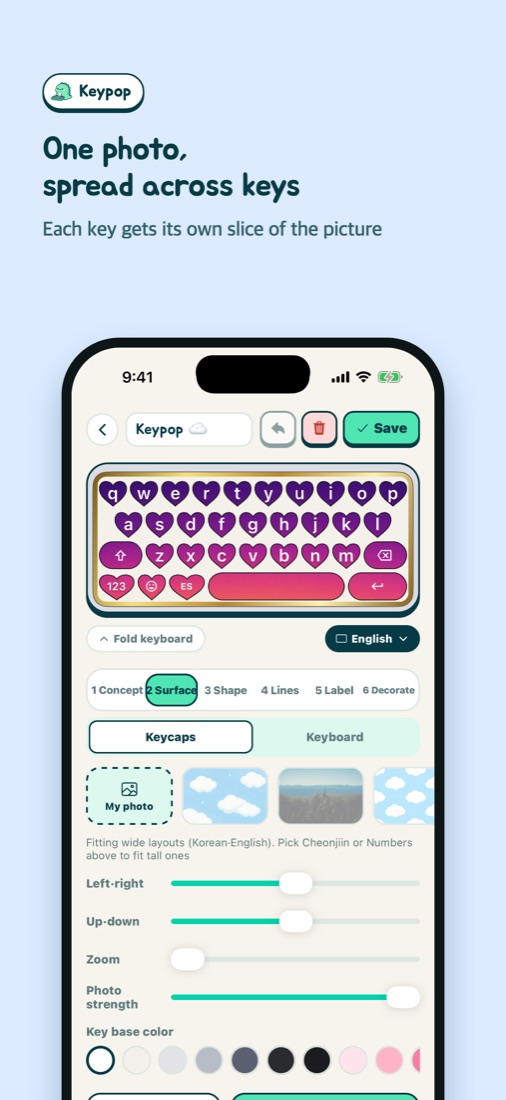
Once it’s on, open the Make tab and design your keyboard. You can split one photo across every key, or use heart or cloud keys with a gold outline. More on that in make your own keycap keyboard, and for sounds see change your iPhone keyboard sound.
If something isn’t working
If Keypop isn’t in the keyboard list, check that the switch under Settings, Apps, Keypop, Keyboards is on. If your design or sound disappears after an update, turn Allow Full Access off and back on. iOS updates sometimes break that connection. If it’s only the sound that’s missing, your phone is probably on silent.
On Android, get Keypop on Google Play, turn it on in Settings, then tap the keyboard icon in any text field and choose Keypop.
Keypop
The whole setup takes about three minutes
Keypop
Free · no login needed
More posts
My Daughter Wanted a Keycap Keyboard App, So I Built One (The Keypop Story)
Make Your Own Keyboard from a Photo (Heart and Cloud Keycaps Included)
How to Change Your iPhone Keyboard Sound to a Mechanical Keyboard Click
Is It Safe to Allow Full Access for a Keyboard App on iPhone?